English
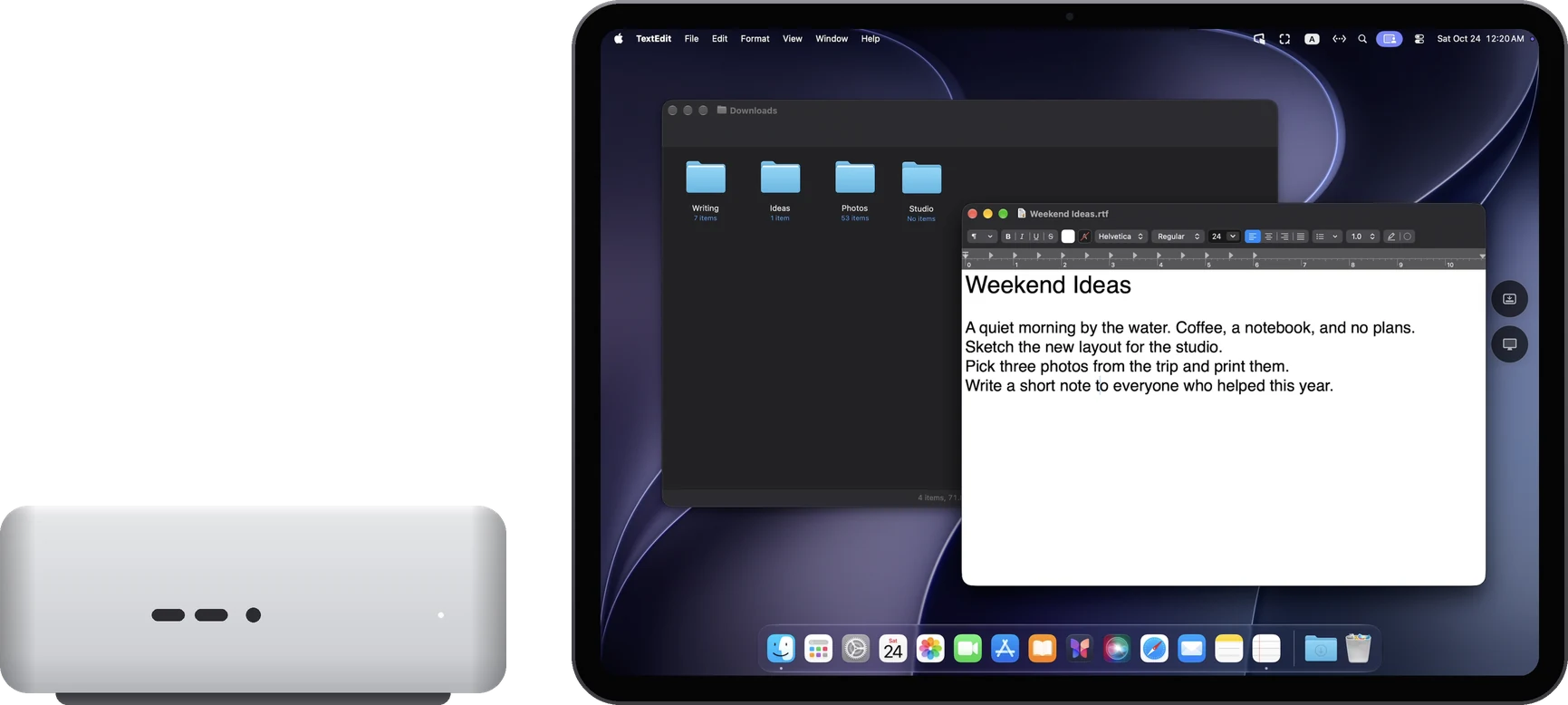
No monitor, still a real screen
When the Mac mini has no display attached, RoveScreen Host creates one for it automatically. That display matches the iPad's native resolution at 2x HiDPI, so text and interface are Retina sharp.
Choose “Main display” and every window is on the iPad. For a bigger desktop, pick “More space” under “Desktop size”; to read more comfortably, pick “Larger text”.
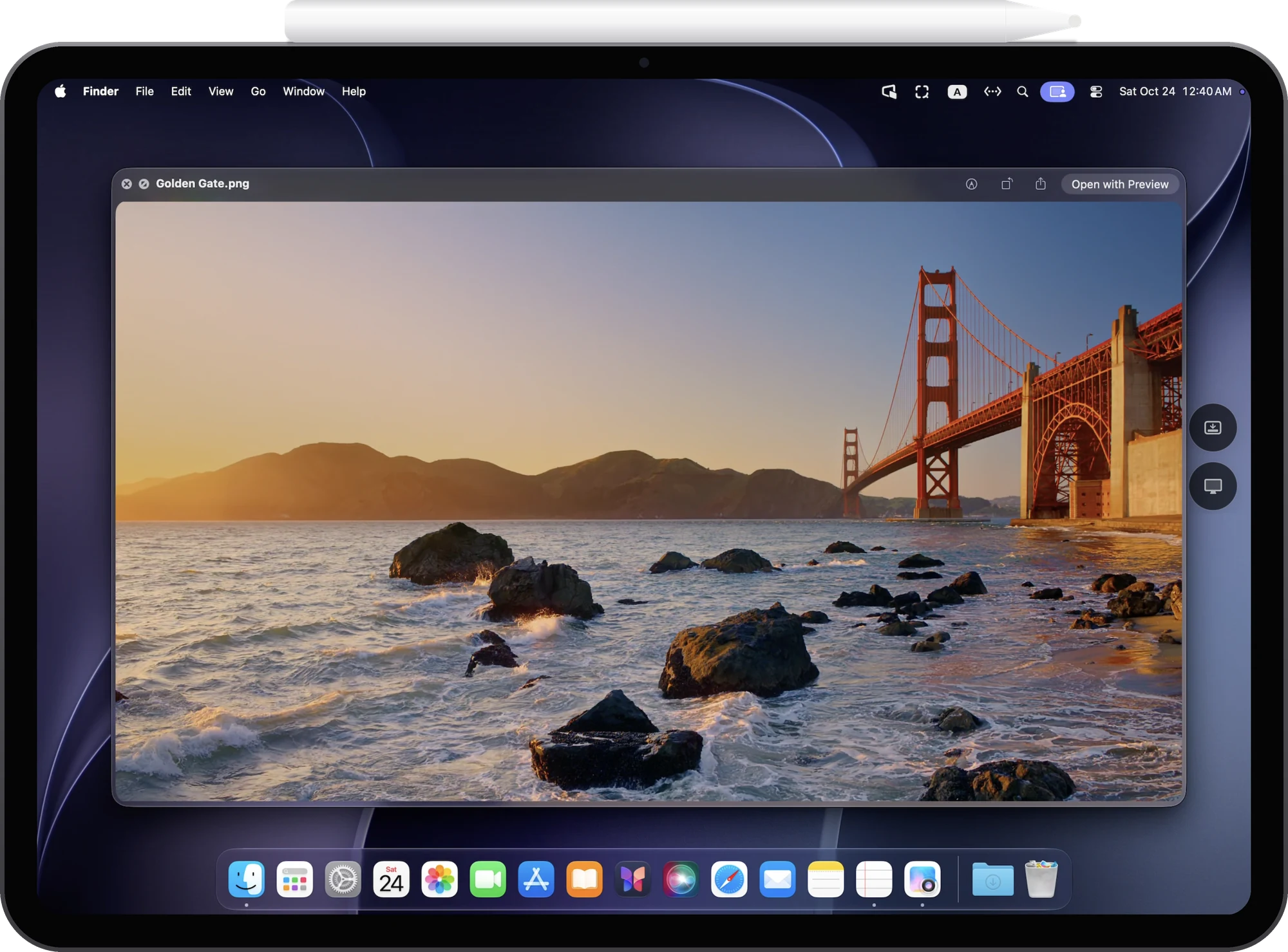
The Mac mini in your study, from the sofa
No Apple Pencil needed. Tap to click, tap twice to double-click, touch and hold to drag, swipe with one finger to scroll, and tap with two fingers to right-click. Connect a keyboard, trackpad or mouse and shortcuts such as ⌘C and ⌘V work as usual.
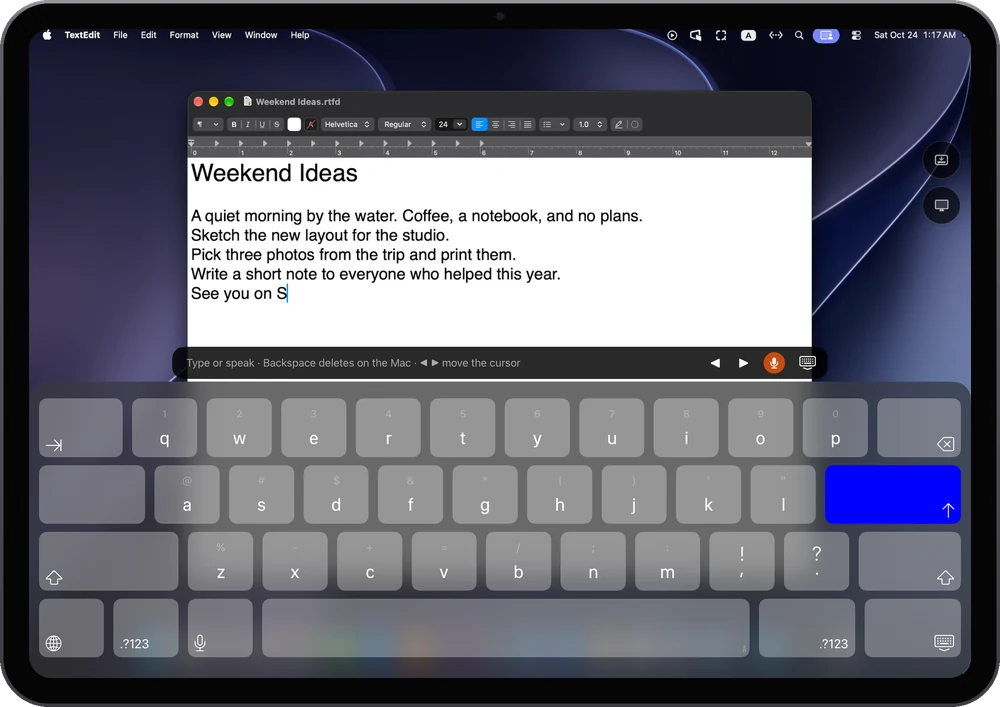
Tap into a text field on the Mac and the iPad keyboard appears, so you can type in your own language or use dictation. Turn on “Stream computer audio” in the menu and the Mac's sound plays on the iPad.
Pick up another device and carry on
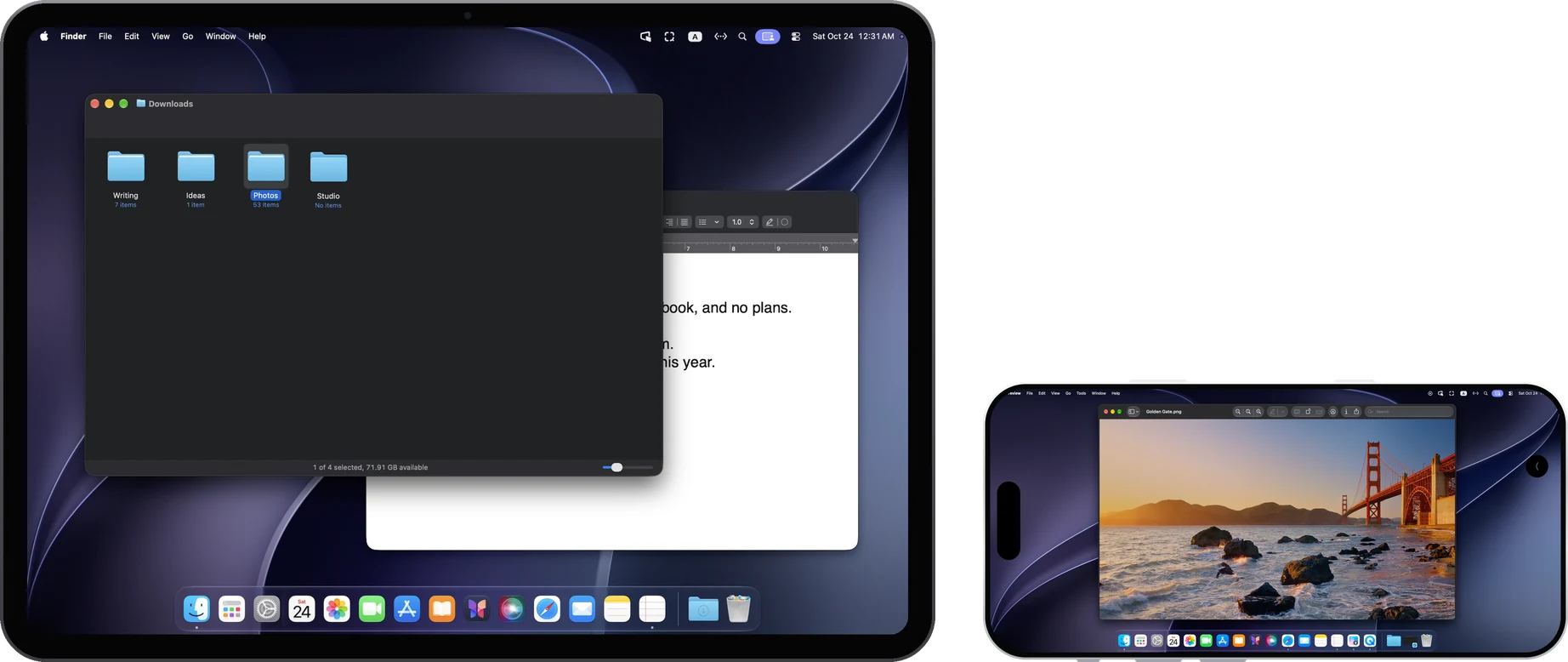
The same Mac mini can be controlled from different devices, one at a time.
iPhone
Turn it sideways and it becomes the Mac's screen. When you need precision, turn on “Show pointer” and the iPhone screen becomes a trackpad.
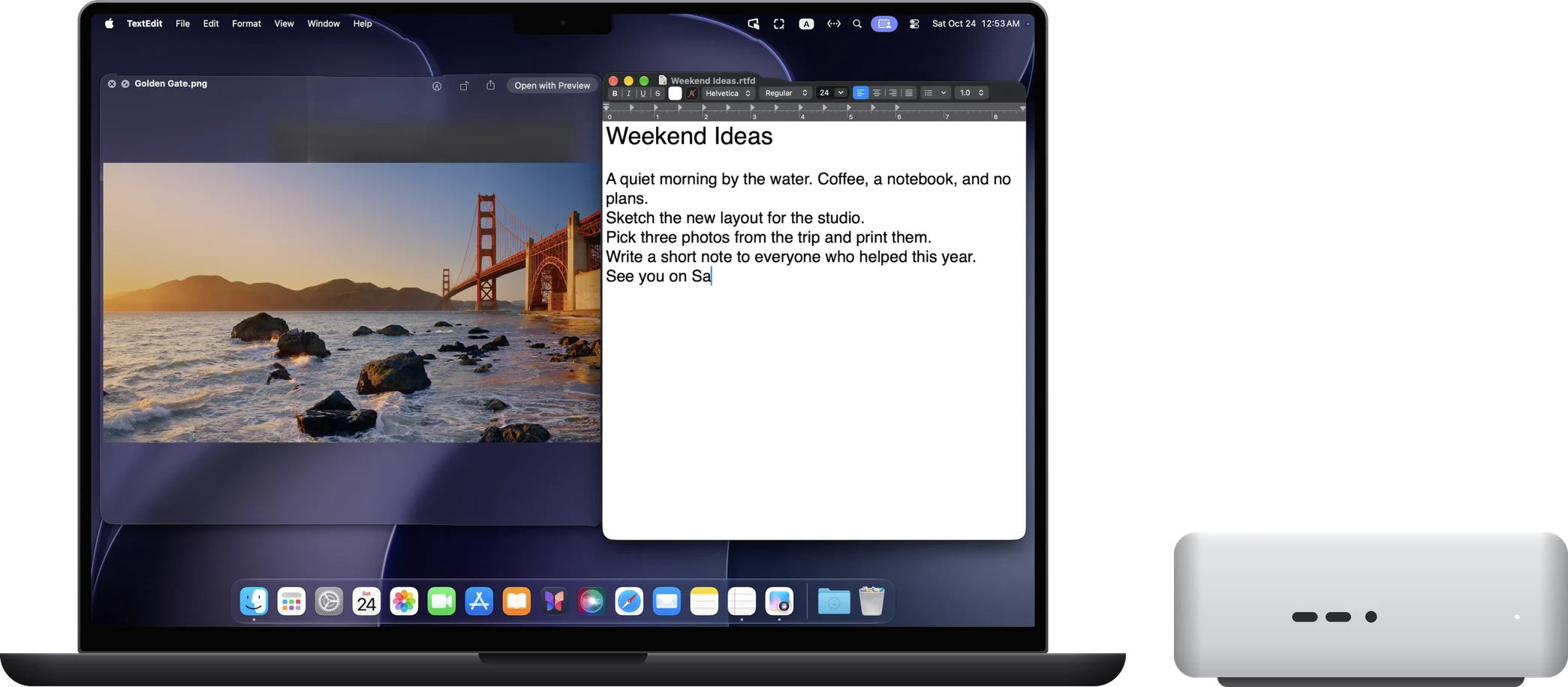
Another Mac
Install RoveScreen Host on your MacBook too, and it controls this Mac mini for free. You can drag files straight across.
Not on the same network
It tries a direct connection automatically. If that isn't possible, you can use a relay you deploy yourself.
First-time setup
You need to see the Mac's screen the first time you allow the system permissions. Once that's done, you can unplug the display.
01
Install RoveScreen Host on the Mac mini
Connect a display temporarily, or reach the Mac mini from another Mac with Apple's Screen Sharing. Install Host and, when asked, allow “Screen & System Audio Recording” and “Accessibility”.
02
Get a pairing code
Choose “Invite remote control” in the RoveScreen Host menu. The window shows an 8-digit one-time pairing code.
03
Add the computer on your iPad
Open RoveScreen, tap “Add computer” and enter the code.
04
Allow it on the Mac
Choose “Always allow” so this iPad can connect directly from now on. Close Screen Sharing or unplug the display, then choose “Main display”.
After the Mac restarts, log in once before RoveScreen Host can connect.
Questions
Does this only work with a Mac mini?
No. Any Mac with Apple silicon running macOS 14 or later works, including MacBook, iMac, Mac mini and Mac Studio. Intel-based Macs are not supported.
What happens to the Mac's own screen in “Main display”?
The Mac's own screens, including any connected display and a laptop's built-in one, go dark for now and come back automatically when you disconnect.
Can my iPad and iPhone control it at the same time?
One device controls the Mac at a time. While the Mac is being controlled, another device gets a notice; end the current connection, then connect.
How much does it cost?
RoveScreen Host for Mac is free. RoveScreen for iPad and iPhone starts with a 7-day free trial, then a one-time purchase that covers iPad and iPhone on the same Apple Account.