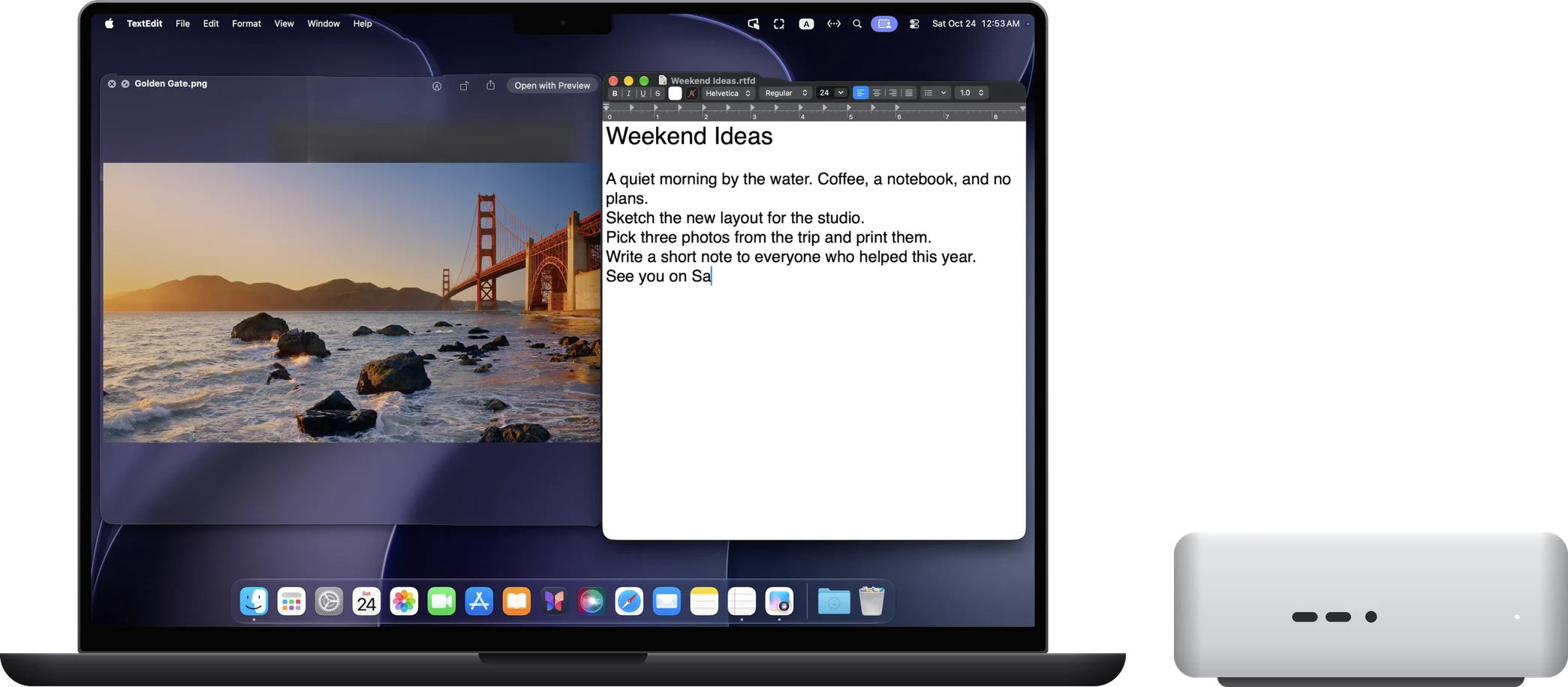
What you need
- Mac: Apple silicon, macOS 14 or later. Intel-based Macs are not supported.
- iPad: iPadOS 17 or later. iPhone: iOS 17 or later.
- No sign-up, and the iPad, iPhone and Mac don't need the same Apple Account.
Connecting
- Install RoveScreen Host on the Mac Download RoveScreen Host, open the DMG and drag it to the Applications folder. The first time you open it, allow “Screen & System Audio Recording” and “Accessibility” when asked. Host is free.
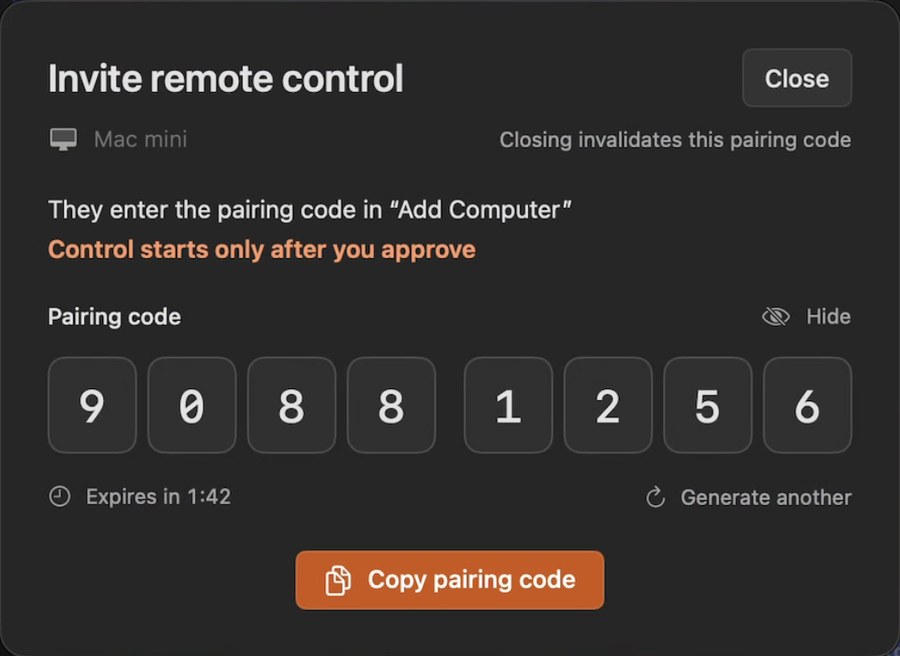
- Get a pairing code on the Mac Choose “Invite remote control” in the RoveScreen Host menu. The window shows an 8-digit one-time pairing code. The code expires, and closing the window invalidates it; make a new one whenever you need it.
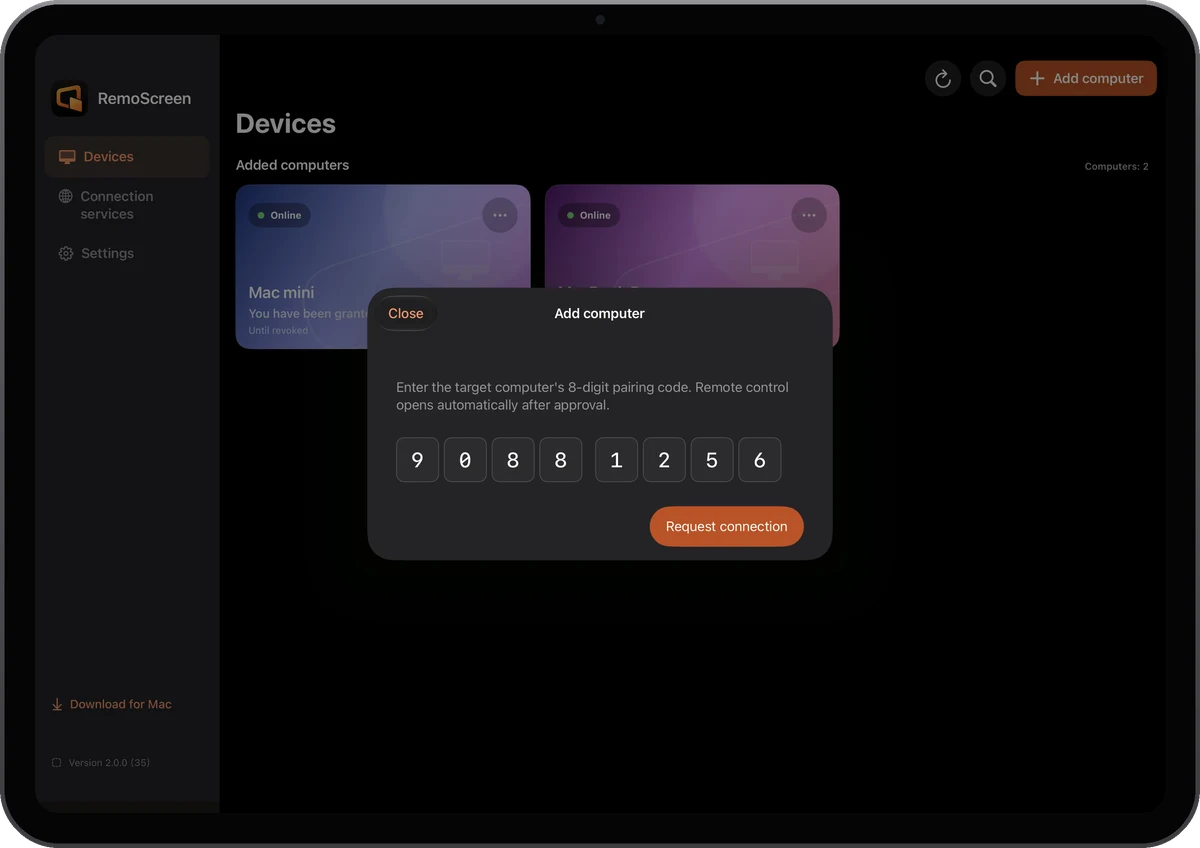
- Add the computer on your iPad or iPhone Install RoveScreen, tap “Add computer” and enter the code.
- Allow it on the Mac A request appears on the Mac: choose “Allow once”, “Always allow” or “Deny”. With “Always allow”, this device can connect directly from now on, until you revoke it.
- Choose how to use it Once connected, choose extended display, main display or mirror display in the menu.
Display modes and desktop size
Controlling from another Mac
Install RoveScreen Host on both Macs. Choose “Invite remote control” on the Mac to be controlled, then click “Add computer” in the other Mac's Host and enter the code.
If it doesn't connect
- Check that the Mac is on, logged in, and RoveScreen Host is running.
- If the pairing code was mistyped, already used or expired, make a new one on the Mac.
- If another device is controlling the Mac, end that connection first.
- If you're not on the same network, see Connecting across networks.